
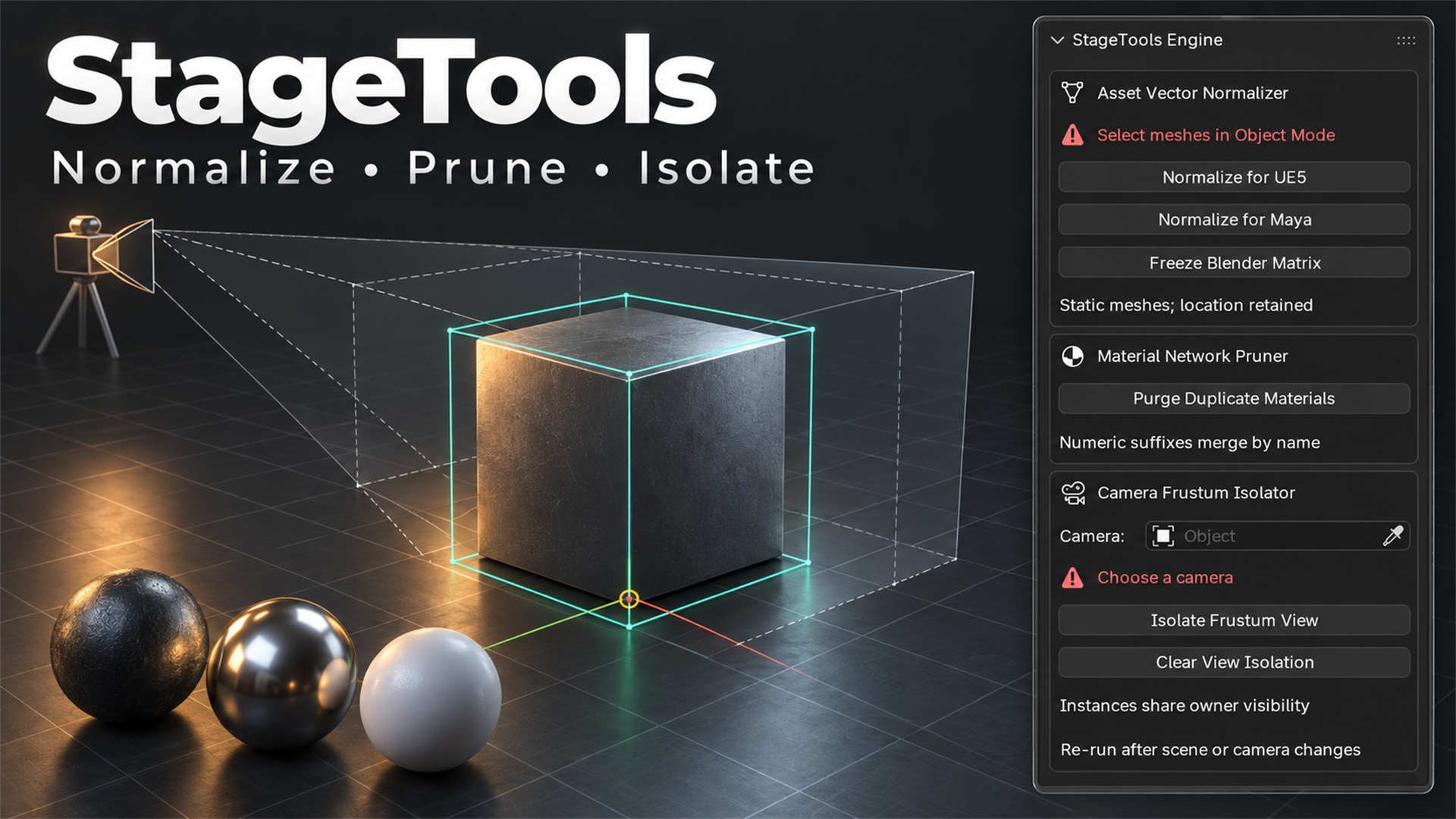
Preparing a Blender scene often means switching between small, unrelated tasks: getting a static mesh ready for export, cleaning up duplicate materials, and hiding the objects that fall outside a camera. Stage Tools brings those tasks into one sidebar panel.
Version 1.0.0 combines three utilities: Asset Vector Normalizer, Material Network Pruner, and Camera Frustum Isolator. The aim is a compact scene-preparation toolkit, with the consequences of each operation made clear.
Three tools, one place
The panel lives in the StageTools tab of the 3D Viewport sidebar. It combines the supplied Asset Vector Normalizer, Dirty Material Pruner, and Camera Frustum Isolator add-ons into a single extension with shared registration.
Each utility handles a different part of preparation. Normalization works on selected static mesh assets. Material pruning works across the file. Camera isolation works with evaluated meshes and instances in the active view layer. Those scopes matter: putting the buttons together should make the workflow easier to follow without hiding what they change.
Preparing static assets
Asset Vector Normalizer measures a mesh’s world-space bounds and finds its bottom center. It bakes rotation and scale into the mesh, places the origin at that computed pivot, and centers the resulting geometry above it.
There are three choices. Freeze Blender Matrix bakes the existing world rotation and scale. Normalize for UE5 adds a −90° rotation around Z, mapping an assumed +Y forward direction to +X. Normalize for Maya adds a +90° rotation around X, mapping that assumed +Y direction to +Z.
These are geometry operations. Exporter axis settings, units, and FBX options still need to match the destination pipeline. Running an axis-correction button twice rotates the geometry twice.
Shared mesh data is copied before modification, so normalizing one object does not alter its other users. The tool rejects parented, animated, constrained, modified, and rigid-body meshes. For those assets, prepare a separate static export copy first.
Cleaning materials by name
Material Network Pruner consolidates numerically suffixed material assignments. If an existing local master named Steel is available, mesh slots assigned to Steel.001 can be redirected to it.
The operation scans mesh material slots across the Blender file; it does not depend on the current selection. It also removes unused local material datablocks with zero users, including materials unrelated to a particular duplicate. Fake-user materials and materials still referenced elsewhere remain.
The important limit is that matching is based on names. The tool does not compare shader nodes, textures, or parameter values. A suffixed material might contain an intentional variation, so material names should be reviewed before running the operation.
Focusing on the camera
Camera Frustum Isolator tests evaluated mesh bounds against the side planes and clipping distances of a perspective or orthographic camera. Objects are hidden only when their bounds sit completely outside a frustum plane.
Instances are evaluated at their instance transforms. When multiple evaluated instances share an owner, an in-frame instance keeps that owner visible. This helps preserve visible instances while reducing viewport clutter.
Isolation is a manual snapshot. After moving the camera, changing geometry, or changing frames, run it again. It is a conservative bounding-box test rather than an occlusion test, so some objects outside the visible image may remain.
Clear View Isolation clears object hiding where Blender permits it. It does not restore a previous visibility snapshot, and shared object visibility can affect other scenes or view layers. Render visibility remains unchanged.
A practical sequence
Start with a saved working copy. Prepare static export meshes, choose the normalization operation once, and inspect their pivots and orientation. Review material variants before pruning. Then choose the layout camera and isolate its frustum for viewport work.
The operators support Blender Undo, but understanding their scope is still part of using them well. A file-wide material operation and a selected-mesh transform operation should not be treated as interchangeable cleanup buttons.
Version 1.0.0 and verification
Stage Tools declares Blender 4.5.0 as its minimum version. Integration checks and extension package validation ran in Blender 5.1.2, covering normalization, shared mesh protection, material remapping, camera isolation, instances, and registration cleanup.
Blender 4.5 runtime compatibility and every library-override configuration remain unverified. The extension runs offline with Blender-provided modules and Python math, requests no permissions, and uses the GPL-3.0-or-later license.
For installation steps, supported inputs, and detailed behavior, read the Stage Tools documentation. The project page gives a shorter overview of the suite.