
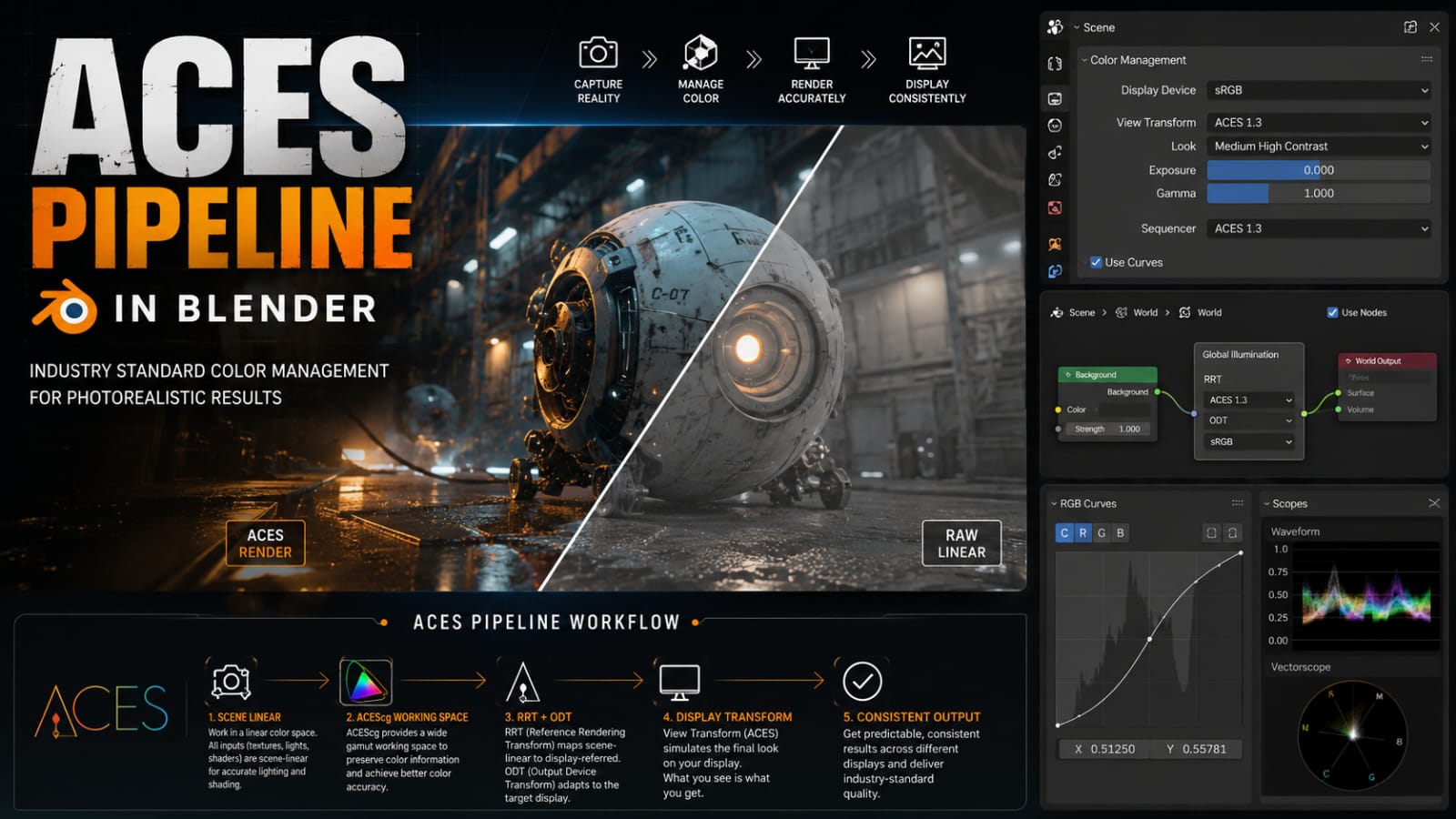
ACES (Academy Color Encoding System) has become the standard color management framework for film production. If you’re working on anything that will eventually touch a DI (Digital Intermediate) suite or compositor working in ACES, getting your Blender viewport and render output into ACES from the start saves enormous headaches downstream. This guide covers the complete setup from installation through to final delivery.
Why ACES Over sRGB?
Standard sRGB and Rec.709 color spaces are designed for display — they have a limited gamut and a baked-in gamma curve that’s optimized for consumer monitors. ACES uses a wide gamut working space (ACEScg for rendering, ACEScc/ACEScct for grading) with a perceptually linear encoding that preserves detail in both deep shadows and bright highlights. For VFX work, this means your CG elements will composite correctly over live-action footage that’s been captured in log or wide-gamut formats. It also means your renders look correct when viewed on any calibrated display, whether that’s a Rec.709 monitor in a review room or a P3 DCI projector in a theater.
In practice, the biggest day-to-day benefit is that lighting artists can work in a consistent, physically plausible color space. When you set up a sun lamp at an intensity of 5 and a fill light at 0.3, those values mean the same thing regardless of your monitor’s calibration. Under sRGB, lighting values are display-dependent and break when you change monitors.
Step 1: Install OpenColorIO Configs
Blender 3.x and later ship with built-in OpenColorIO support, but the default ACES configuration may not include all the OCIO transforms your pipeline needs. Download the official ACES repository from the AcademySoftwareFoundation/ACES GitHub repo. Extract the aces_1.3 config directory and place it in a shared pipeline location — something like /pipeline/ocio/aces_1.3/ so all artists can reference it.
Set the environment variable OCIO to point to config.ocio inside that directory. On Linux, add export OCIO=/pipeline/ocio/aces_1.3/config.ocio to your shell profile. On Windows, set it through System Properties or your launcher script. Blender will automatically detect and use this configuration on startup.
Step 2: Configure Blender Color Management
Open Blender and navigate to Edit → Preferences → System and ensure OpenColorIO is enabled. Then go to Render Properties → Color Management. Set the Display Device to sRGB (for standard monitors) or P3-D65 (for wide-gamut displays). Set the View Transform to ACES RRT and the Look to None for neutral rendering.
The Exposure and Gamma controls in the viewport are purely for display — they don’t affect your render output. Use them to adjust how the image appears on your monitor without changing the underlying data. This is critical to understand: your render passes are always stored in linear ACEScg, and the display transform is applied only for viewing.
Step 3: Texture Input Transforms
This is where most setups go wrong. Textures saved as PNG or JPEG are in sRGB color space. When you import them into an ACEScg working environment, they need to be linearized first. Blender’s OCIO integration handles this automatically if you tag your textures correctly in the Image Editor: set the Color Space dropdown to sRGB - Texture for albedo and emission maps, and Utility - Linear - sRGB for normal, roughness, and metallic maps.
For EXR textures exported from Substance Painter or Mari, they’re typically already linear — use the ACES - ACEScg color space. I recommend creating a texture naming convention that includes the color space suffix (e.g., asset_diff_srgb.png vs asset_normal_lin.exr) so the correct transforms can be applied automatically by pipeline tools.
Step 4: Render Output Settings
In the Output Properties panel, set your file format to OpenEXR with Half Float (16-bit) precision for final renders and Float (32-bit) for deep compositing or plate exports. Enable the Color Management checkbox to bake the OCIO transform into the output file — or disable it if your compositing pipeline expects linear ACEScg data (which it should).
For preview renders and dailies, I export JPEG with the sRGB display transform baked in. This gives artists a reference image that looks the same on any standard monitor. For the actual delivery renders going to comp, I output EXR sequences in ACEScg with embedded OCIO metadata so Nuke or Fusion can apply the correct display transform automatically.
Step 5: Validation and Testing
Before deploying the pipeline to your team, run a validation test. Render a Macbeth chart (color checker) in Blender under ACES and compare it against the same chart rendered in Nuke with identical ACES settings. The colors should match within tolerance. Also verify that your sRGB textures aren’t being double-linearized — a common symptom is albedo textures that look washed out or desaturated in the viewport. If you see this, check that the image’s Color Space property is set correctly.
I’ve put together a small Blender file with test scenes for this validation — it includes a Macbeth chart, a grayscale ramp for shadow/highlight testing, and a set of known-value light sources. It’s available on my GitHub if you want to use it for your own pipeline validation.
Common Pitfalls
The most frequent issues I see in studio pipelines are: (1) texture colorspace not set correctly, causing double linearization; (2) compositors applying their own display transform on top of the one already baked into renders; (3) LUTs from DaVinci Resolve or other grading tools being applied in the wrong order relative to the ACES RRT; and (4) viewport exposure being baked into renders because artists accidentally adjusted the render pass exposure instead of just the viewport. Each of these creates subtle but visible color shifts that are extremely painful to diagnose in a final composite.