
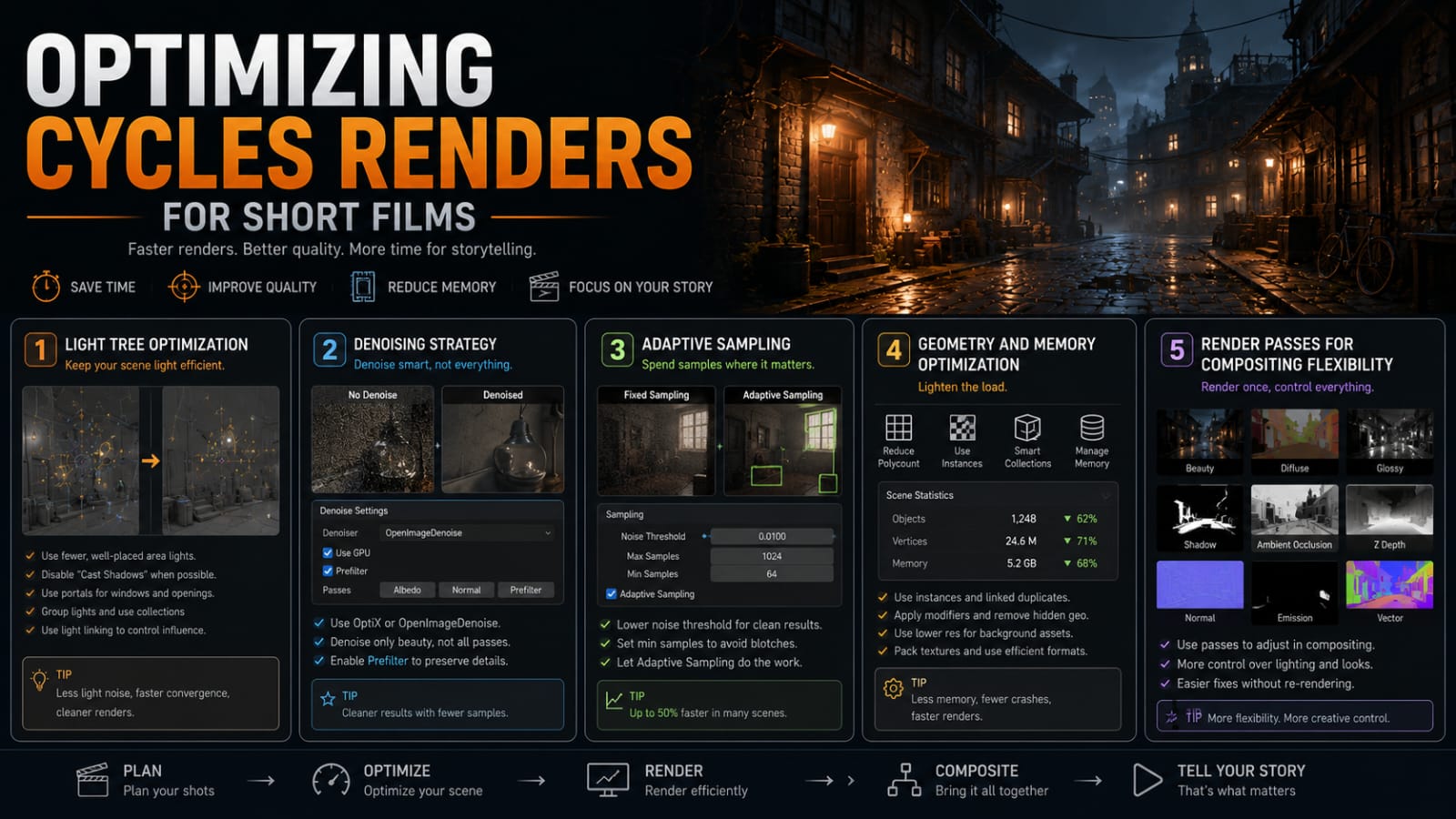
Rendering a short film in Cycles is an exercise in patience. A single 4K frame with complex lighting, volumetrics, and high-poly assets can take anywhere from five minutes to an hour depending on your hardware. Multiply that by 2,400 frames at 24fps, and render time becomes the single biggest bottleneck in production. Here are the strategies I used to reduce my average frame time from 22 minutes to under 4 minutes while maintaining film-quality output.
Light Tree Optimization
Blender 3.0 introduced the light tree, which uses a BVH structure to intelligently sample lights based on their contribution to each pixel. This was a game-changer, but the default settings aren’t tuned for complex scenes. The key parameter is the portal threshold in the Light Paths panel. I set this to 0.01 for interior scenes and 0.1 for exterior scenes. The lower the value, the more aggressively Cycles culls small or distant light sources from the sampling pool.
Another critical adjustment is the Max Bounces for diffuse and glossy. For most scenes, 4 diffuse bounces and 6 glossy bounces are sufficient. The default of 8 and 4 respectively over-estimates diffuse while under-estimating glossy. I’ve found that reducing total light bounces from the default 12 to 8 (4 diffuse, 6 glossy, 2 transmission, 8 volume) gives a good balance of quality and speed for most film work. For caustics-heavy shots, I increase glossy bounces to 12 but cap diffuse at 3.
Denoising Strategy
Cycles offers several denoising options, and the right choice depends on your render settings. At low sample counts (under 128), the NLM denoiser produces a softer, more filmic result that’s often preferable. At higher sample counts (256+), OpenImageDenoise (OIDN) preserves more detail and edge sharpness. The Denoising passes option is essential — it generates separate denoising normal and albedo passes that give the denoiser much more information to work with, significantly improving edge preservation.
For my short film, I settled on a two-pass approach: render at 128 samples with NLM denoising for animation previews, and render at 512 samples with OIDN and denoising passes for final output. The preview renders take about 90 seconds per frame at 4K on my RTX 4090, which is fast enough for daily reviews. The final renders take about 4 minutes per frame, which is a 5x improvement over the 22-minute baseline I started with.
Adaptive Sampling
Adaptive sampling is perhaps the most under-utilized optimization in Cycles. Instead of rendering every pixel to the same sample count, adaptive sampling focuses compute on noisy areas while stopping early on simple, converged regions. In the Render Properties, set the Noise Threshold to 0.01 for final quality and 0.05 for previews. The Min Samples should be set to at least 32 to prevent the adaptive algorithm from terminating too early on complex regions.
On my short film’s hero shots — which featured volumetric fog, subsurface scattering on skin, and complex glass refractions — adaptive sampling reduced render time by approximately 35% compared to fixed sampling at equivalent quality. The savings come primarily from large flat regions (walls, sky, ground planes) that converge quickly and get flagged as done early in the render.
Geometry and Memory Optimization
Cycles loads the entire scene into memory before rendering. For high-poly scenes, this can cause out-of-memory errors or force you to use CPU rendering when GPU would be faster. The first optimization is Instancing. Instead of duplicating geometry with linked duplicates (Alt+D), use Geometry Nodes to instance across a surface. Instances share the same mesh data, dramatically reducing memory usage. On a forest scene with 10,000 trees, instancing reduced my VRAM usage from 18GB to 3.2GB.
The second optimization is Camera Culling. In the Object Properties panel under Visibility → Cycles Settings, enable Camera Culling and set a max distance. Objects beyond this distance won’t be loaded into the render, saving both memory and render time. For a cityscape with buildings extending to the horizon, camera culling at 500 meters cut my memory usage by 40% with no visible quality difference.
Render Passes for Compositing Flexibility
Rather than trying to get the perfect look in a single combined render pass, I render separate passes and composite in Nuke or Blender’s compositor. The passes I render for every shot are: Combined, Denoising Normal, Denoising Albedo, Cryptomatte (for object and material ID mattes), Depth, and Mist. These passes give the compositor full control over color correction, depth of field, fog, and object isolation without re-rendering.
The trick is that the combined pass only needs enough quality to serve as a base layer — the compositor handles the fine-tuning. This means I can render the combined pass at lower samples (128-256) and rely on the denoising passes to clean it up, while the Cryptomatte and utility passes are generated alongside with zero additional render cost since they’re computed from the existing render data.
Final Render Settings Reference
Here are the exact settings I settled on for my short film’s final delivery: 512 samples, adaptive sampling with 0.01 noise threshold and 32 min samples, OIDN denoiser with denoising passes enabled, 4/6/2/8/8 light bounces (diffuse, glossy, transmission, transparent, volume), portal threshold at 0.05, and tile size set to 2048x2048 for GPU rendering. On an RTX 4090, this averages 3.5-4.5 minutes per frame at 4K (3840x2160). For comparison, the same scene at default settings takes 18-25 minutes per frame.